
Canva Customer Center
Setting Up Pages & Cover Files
For printing purposes, your Canva yearbook pages and covers require specific production dimensions and safety margins.
Follow the step-by-step instructions below to make sure your files are set up correctly from the start.
Before You Begin
Important File Setup Information
For printing purposes, your pages and cover must be set up as 2 separate files with proper dimensions for production:
Pages File = Individual Pages
Your pages file must be set up as individual pages (not spreads). The size is different from just a standard page size — use custom dimensions of 8.75″ × 11.25″.
Cover File = Complete Spread
Your cover is set up as a single wide spread (back cover, spine, and front cover together) with specific dimensions based on your binding type and total page count.
Step-by-Step Instructions
Setting Up Your Pages for Design
Follow these exact steps inside Canva to establish the correct page dimensions and safety margins.
Visual Page Dimensions Guide
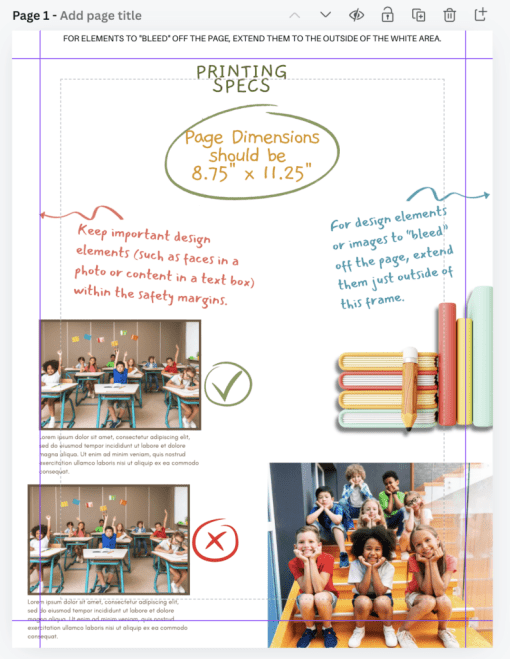
Solid purple line = Safety margin (keep important content inside). Dotted line = Canva preset margin.
Step 1
SET UP THE PAGE DIMENSIONS
- Click on “Create a design”
- Select “Custom size”
- Units should be set to inches
- Change the width to 8.75″ and the height to 11.25″
- Click on Create New Design
Step 2
SET UP THE SAFETY MARGINS
Important: The safety margin is the solid purple line. Keep text, faces, and important images inside this safety margin to avoid them being trimmed off in your final printed copy. The dotted line is a pre-set Canva margin but does not determine placement of your design for printing.
- Click File
- Select Settings
- Add Guides
- Click on the Custom option
- Change the Columns to 0
- Margins should be 0.5 for Columns and Rows
- Click on Add Guides
Watch the Walkthrough
Check out this video for a review of the steps.
YearbookLife Tip
ADD PAGE NUMBERS!
Page numbers are part of your design process; they are not added during production. Page numbers are especially important if you’ve added a Table of Contents.
Page numbers are traditionally placed on the lower outside corner of your design or the bottom center and must be within the safety margins.
Cover File Setup
SETTING UP YOUR COVER FOR DESIGN
Your cover template is set up as a spread. The left side of the spread will be the back cover and the right side of the spread will be the front cover. See example below.
Cover Dimensions Depend on Binding & Page Count
The size dimensions of your cover are based upon your binding type and the number of pages in your design.
Check Your Inbox
Look for an email from YearbookLife titled “Yearbook Cover Specs” for the dimensions for your specific project, or contact production@yearbooklife.com for those specifications.
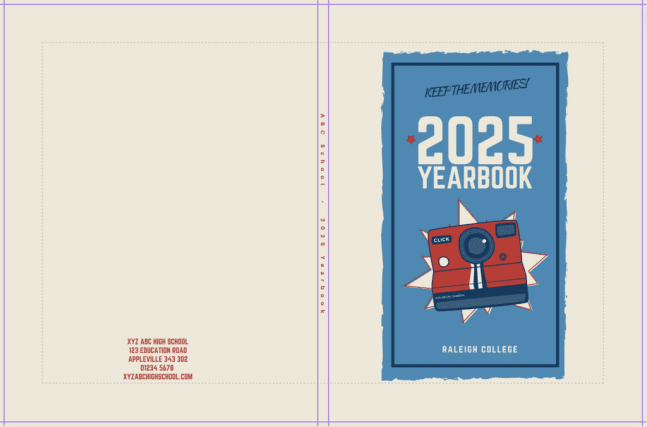
Left side of spread = Back cover • Center = Spine • Right side of spread = Front cover.
START DESIGNING!
You can do a keyword search for “yearbook” within your Canva account to find templates for your yearbook or you can start your design from scratch.
Pro Tip: When designing your Pages, adjust the template design as needed to cover the entire page to avoid having a white border around the pages.
NEED HELP?
Get personal, one-on-one help from an experienced YearbookLife yearbook specialist who understands how Canva yearbooks work. Please give us a call at 888-680-0143 for assistance with your design or file setup. For technical issues regarding your Canva account, please contact Canva’s Help Center.